Categories
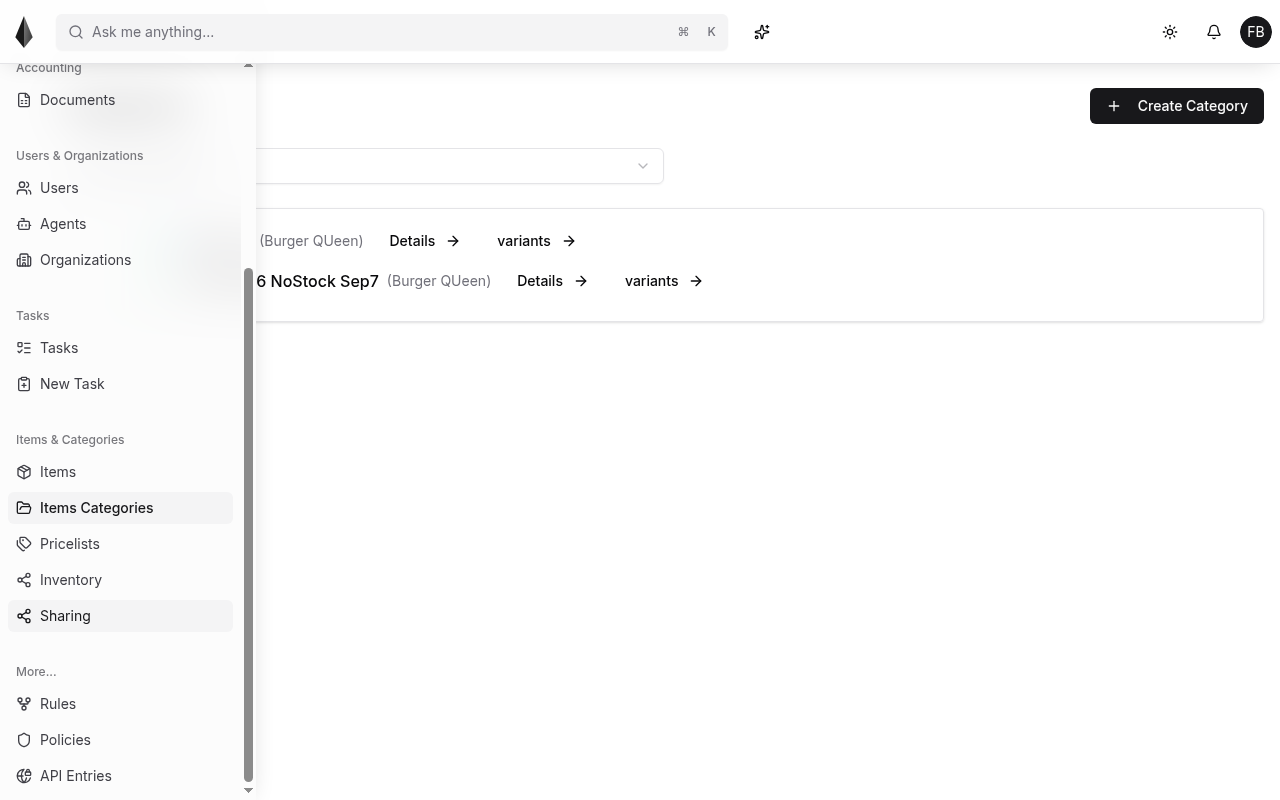
Categories organize your catalog. Open the catalog area from the sidebar, then manage the category tree per organization.
Category tree
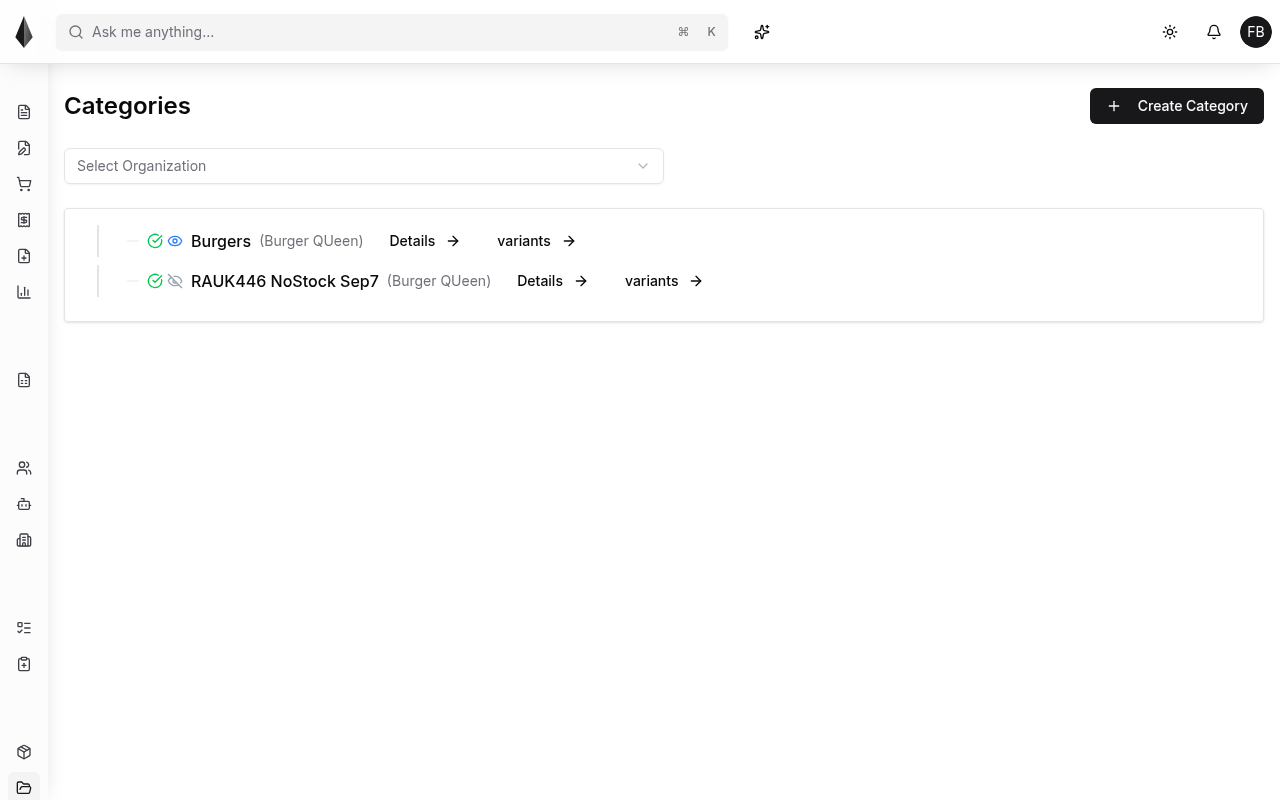
The categories view shows the hierarchy for an organization. Each row can open Details or variants. Icons indicate whether a category is enabled and whether it is visible/selectable for orders.
Create a category
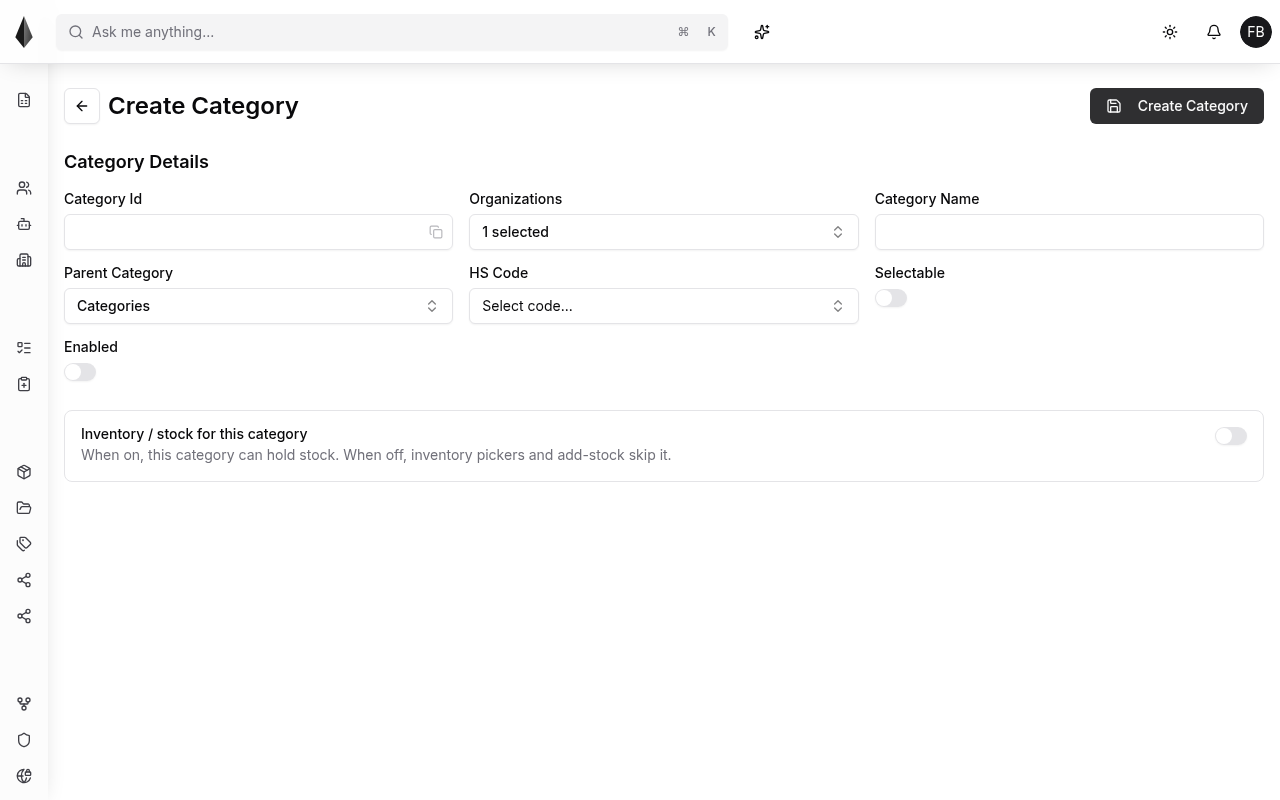
Use Create Category and set:
- Organization (inherited by child categories)
- Name
- Parent category (optional)
- UNSPSC class (optional; inherited by children)
Selectable
By default, new categories may not be selectable when creating an order. Mark a category as selectable so it (and its items) appear in order picking.
If a category is missing while creating an order, check whether it is marked selectable.
Enabled
New categories are typically enabled so you can add items immediately.
Colors
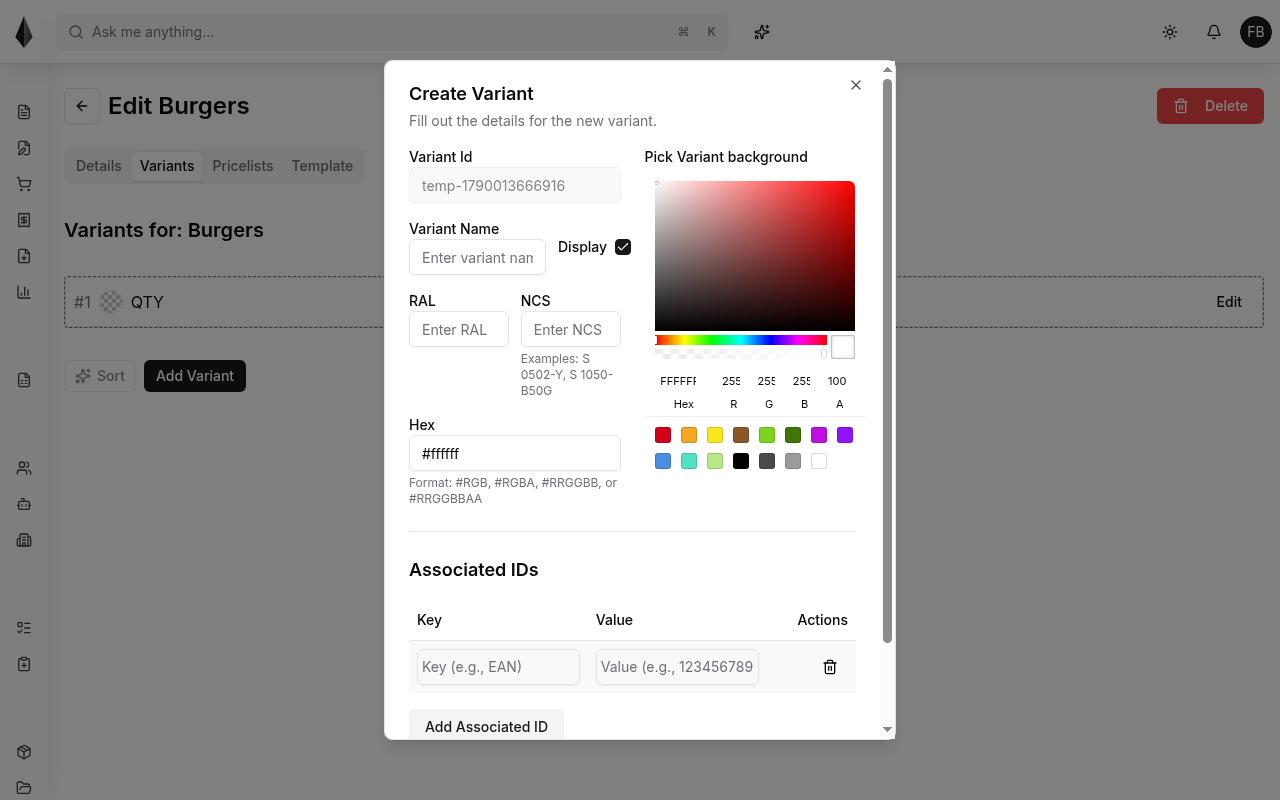
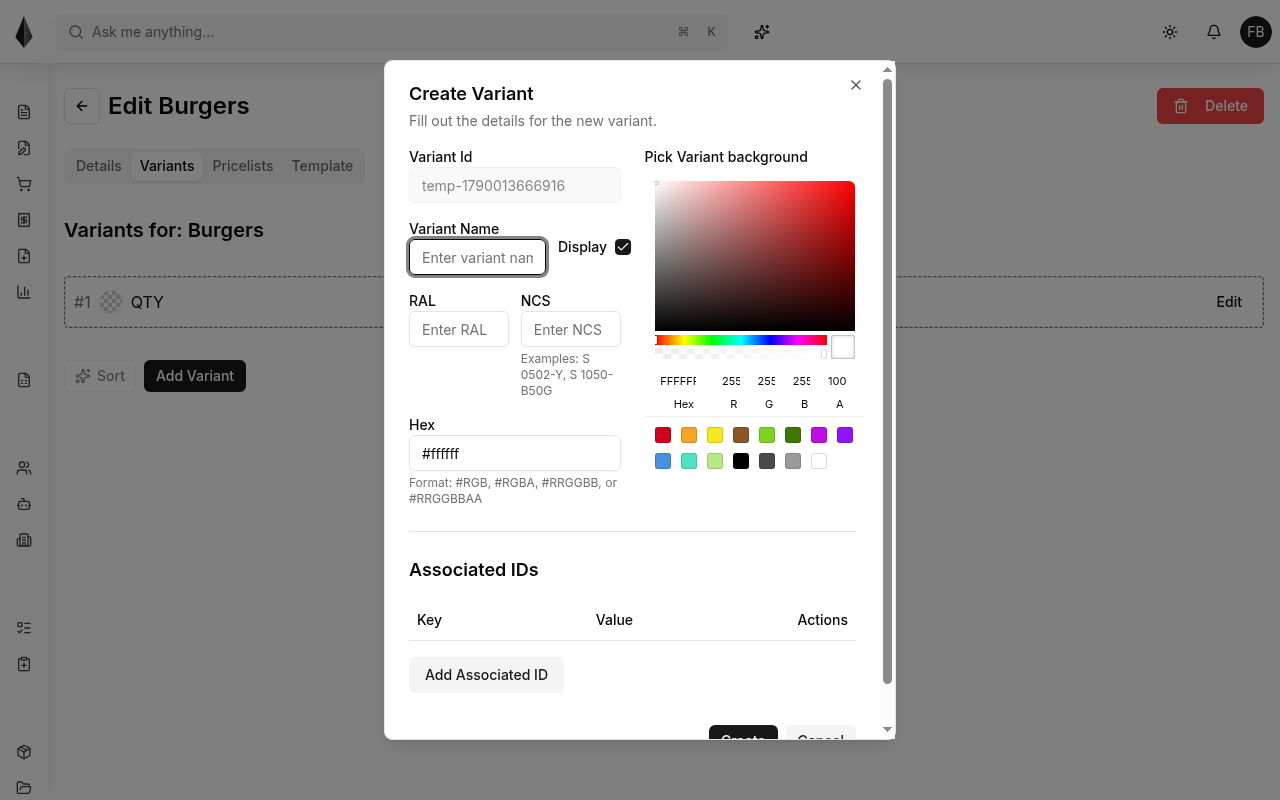
Assign colors under category settings when items need color variants. When adding a color you can set:
- A name (required; hex can be used as the name)
- Hex value
- Optional RAL / NCS values for production standards
- Visibility (hide colors that should not be offered on new orders)
Editing or deleting category data can affect drafts and open orders that already use that category.
Associated color IDs
A color can have multiple associated IDs for factory or site naming. For example, your internal name might be Teal, while one production site uses Caribbean-Green and another uses Aquamarine. Exports can map your internal name to the site-specific ID when needed.